A live Team board
Who is working, on a break, late or not in yet, with each person’s day as a bar. Click anyone for their breaks, screenshots and notes.
TimeTrackr is attendance and time tracking for teams. People press Start and Stop in a desktop app that keeps working offline and updates itself; managers and HR watch the day live and get the month ready for payroll.
Version 0.5.0 · 19 Oct 2026. On a Mac? Download for Mac
Manager or HR? Sign in to the website
WorkingOn a breakLate, past the grace periodNow
Who is working, on a break, late or not in yet, with each person’s day as a bar. Click anyone for their breaks, screenshots and notes.
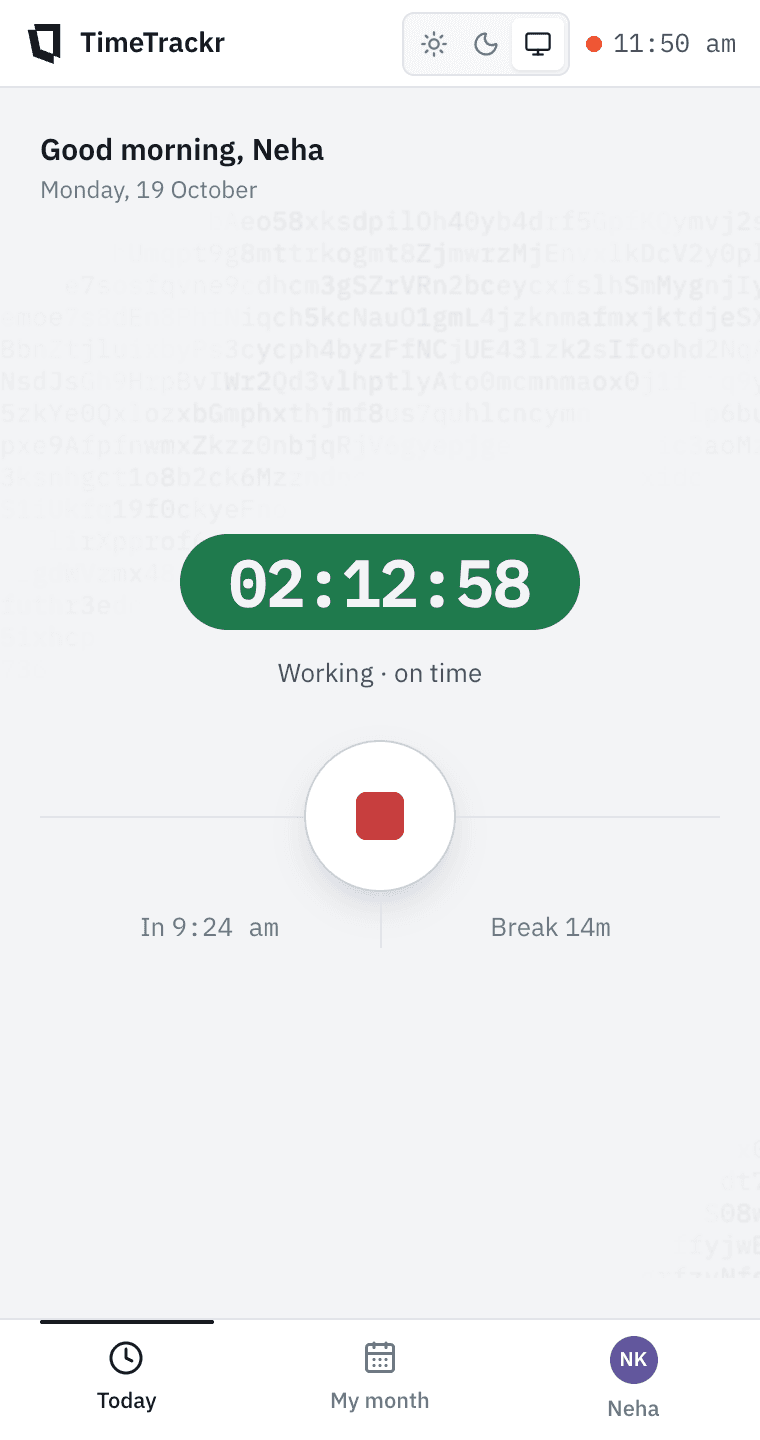
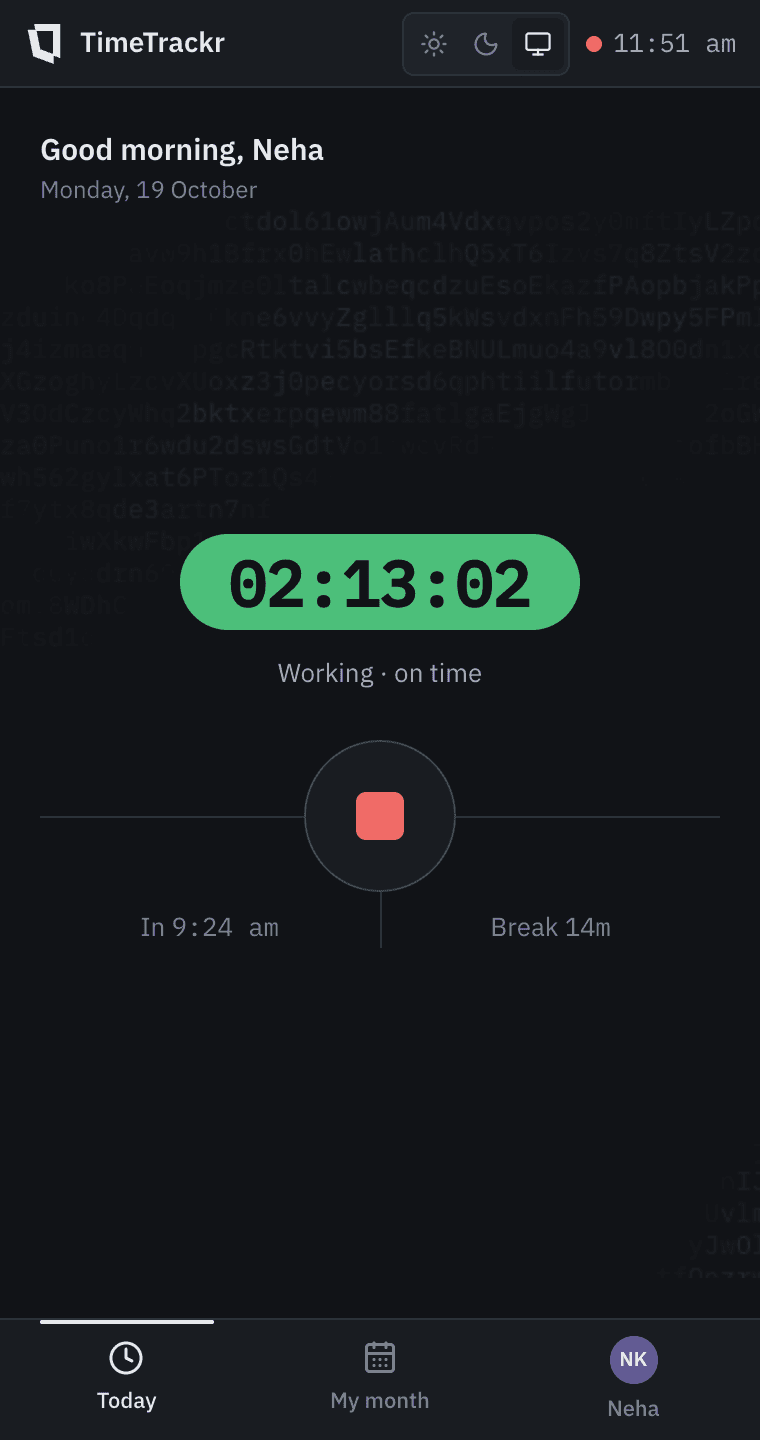
Start when you sit down, Stop when you leave. Starting again the same day picks up where you left off, and the gap counts as a break.
Lateness, breaks over the hour, extra time stayed and half days are all worked out from the times, by the same rules for everyone.
When the network drops, the app keeps recording and sends it when the connection is back.
New versions install on their own. Install it once on each office computer and that’s it.
Forgot to stop? Ask for a correction in a sentence. Managers approve it in one click and the day is fixed straight away.
Present, late, half days and payable days for everyone, a CSV for the salary sheet, and pay worked out from attendance. The owner locks the month once it’s paid.
A screenshot every 15 minutes while someone is working, with how busy the keyboard and mouse were. Never on a break.
Each person gets a sign-in: a 4-digit PIN for the desktop app, or a temporary password for managers, who set their own.
Download the app, sign in once on the office computer, press Start. Signing in clocks them in.
The Team board fills in as people start. At the end of the month, Reports and Salary are already done.
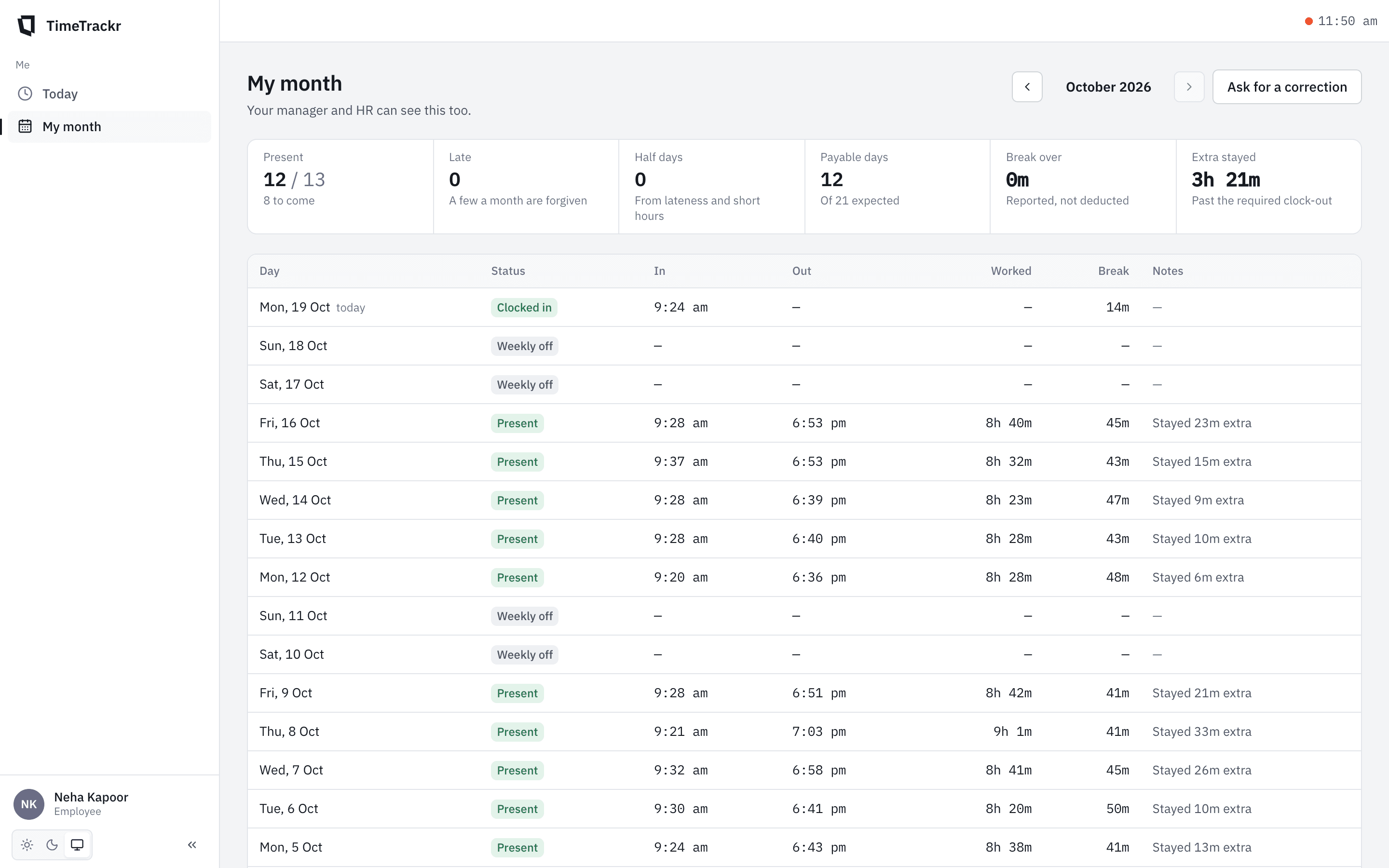
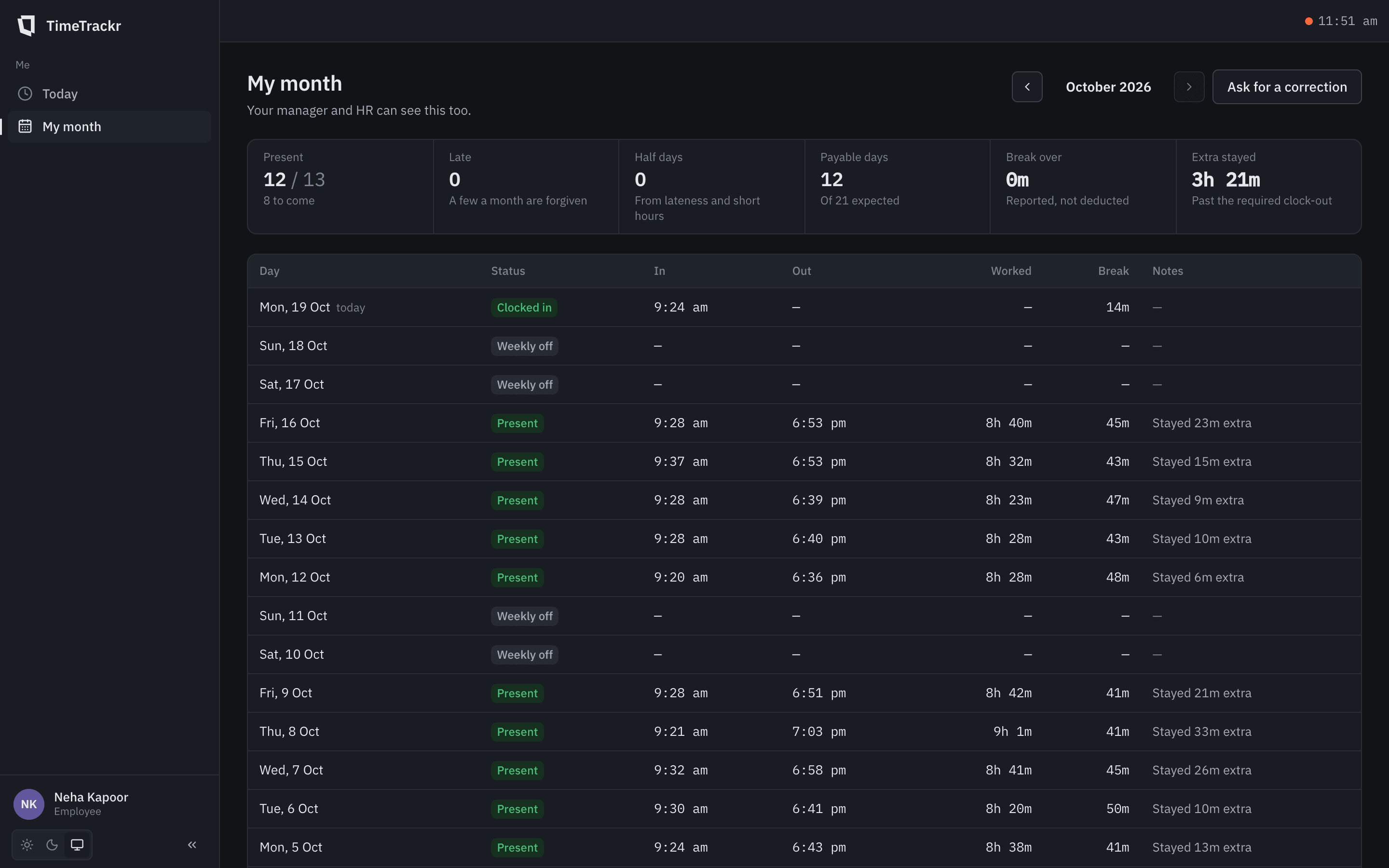
An employee’s month. Managers and HR see the same page for anyone in their team.
TimeTrackr records attendance, not people’s private lives. Everything it records is listed in the app itself.
Yes. The desktop app keeps recording when the connection drops and sends what it recorded as soon as the network is back, so a bad connection doesn't cost anybody their day.
Both: Windows 10 and 11, and Macs with Apple silicon or Intel processors. The download page has a build for each.
The app checks for a new version by itself and installs it. Nobody has to download TimeTrackr again after the first time.
The installer isn't code-signed yet, so Windows asks before running it. Click More info, then Run anyway. IT can also install it silently with the /S switch.
You, your manager and HR. Colleagues can't. Screenshots are only taken while you're working, never on a break or with the screen locked.
Open My month and choose Ask for a correction. Your manager sees it under Requests; once they approve it, the day is fixed straight away.
Screenshots are deleted after 32 days. Attendance records are kept, because pay is worked out from them.
HR adds you and hands you a PIN or a temporary password. Nobody can sign themselves up.
Windows and Mac. It updates itself after the first install.